InventraX
A downloadable tool for Windows
InventraX
Inventory & Asset Management Platform
Built by Alejandro X. Solis — TechFusion Repairs LLC
Overview
InventraX is a desktop application for tracking inventory and physical assets.
It runs fully offline, stores all data in a local SQLite database, and exports to Excel, CSV, and PDF.
Quick Start
1 — Install Python
Requires Python 3.10 or newer.
Download from python.org.
2 — Install dependencies
pip install -r requirements.txt
For camera-based barcode scanning, also install the system library:
- Linux:
sudo apt install libzbar0 - macOS:
brew install zbar - Windows: no extra step needed
3 — Run the app
python Main.py
Project Structure
INVENTRAX/ │ ├── Main.py # Entry point — run this to start the app │ ├── config/ │ ├── settings.py # All paths, constants, and defaults │ └── user_prefs.json # Auto-generated — saves your theme & settings │ ├── core/ │ ├── inventory.py # SQLite CRUD for inventory items │ ├── asset_manager.py # SQLite CRUD for assets + history + maintenance │ ├── barcode_tools.py # QR generation + scanner dialog (USB & camera) │ ├── reporting.py # All report builders and export functions │ ├── prefs.py # User preference load/save/apply │ └── backup.py # Database backup, restore, and rotation │ ├── ui/ │ ├── main_window.py # Main application window (all 4 tabs) │ └── item_editor.py # Full detail/edit dialog (double-click a row) │ ├── data/ │ └── inventrax.db # SQLite database (auto-created on first run) │ ├── logs/ │ └── inventrax.log # Rotating log file (5 MB × 3 files) │ ├── backups/ # Auto-backups created on app close ├── reports/ # Exported reports (Excel, CSV, PDF) ├── barcodes/ # Generated QR code images └── assets/ └── icons/ # App logo and icons
Features
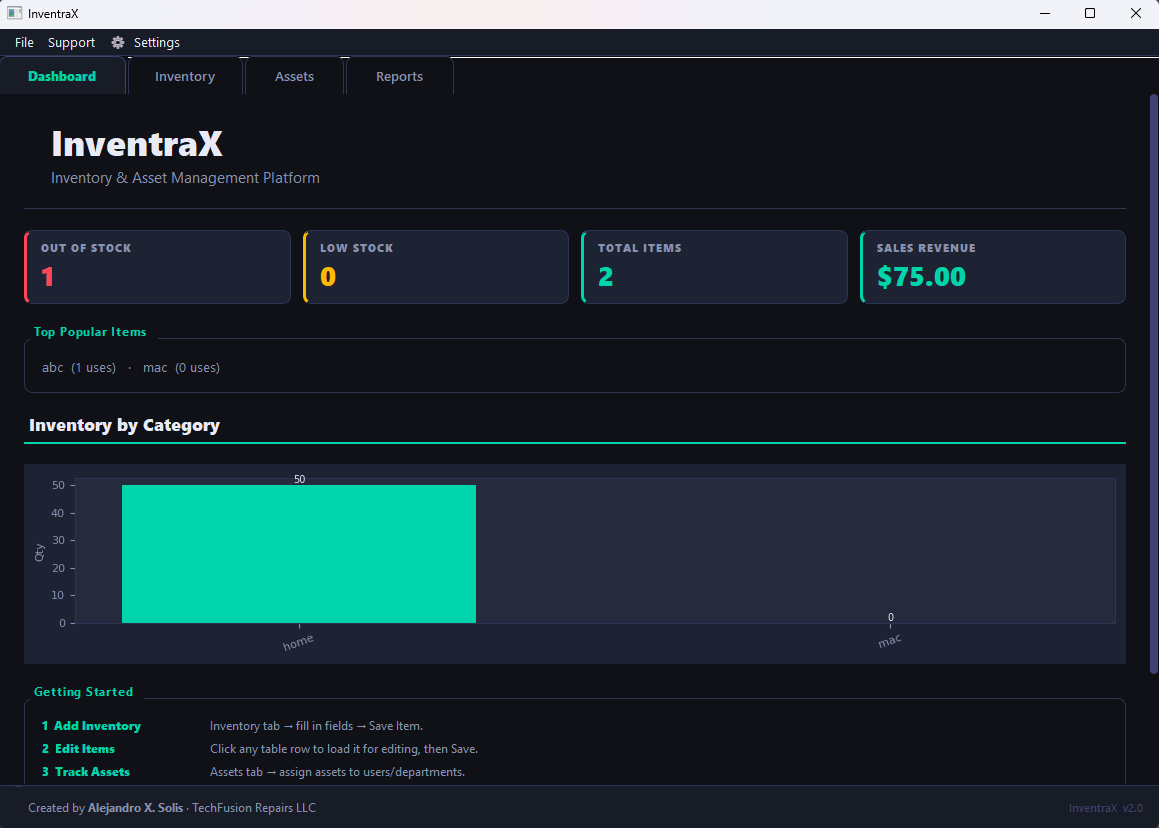
Dashboard
- Live stat cards: Out of Stock, Low Stock, Total Items, Sales Revenue
- Live bar chart showing inventory quantity by category — updates automatically
- Popular items list (by usage count)
- Getting Started guide
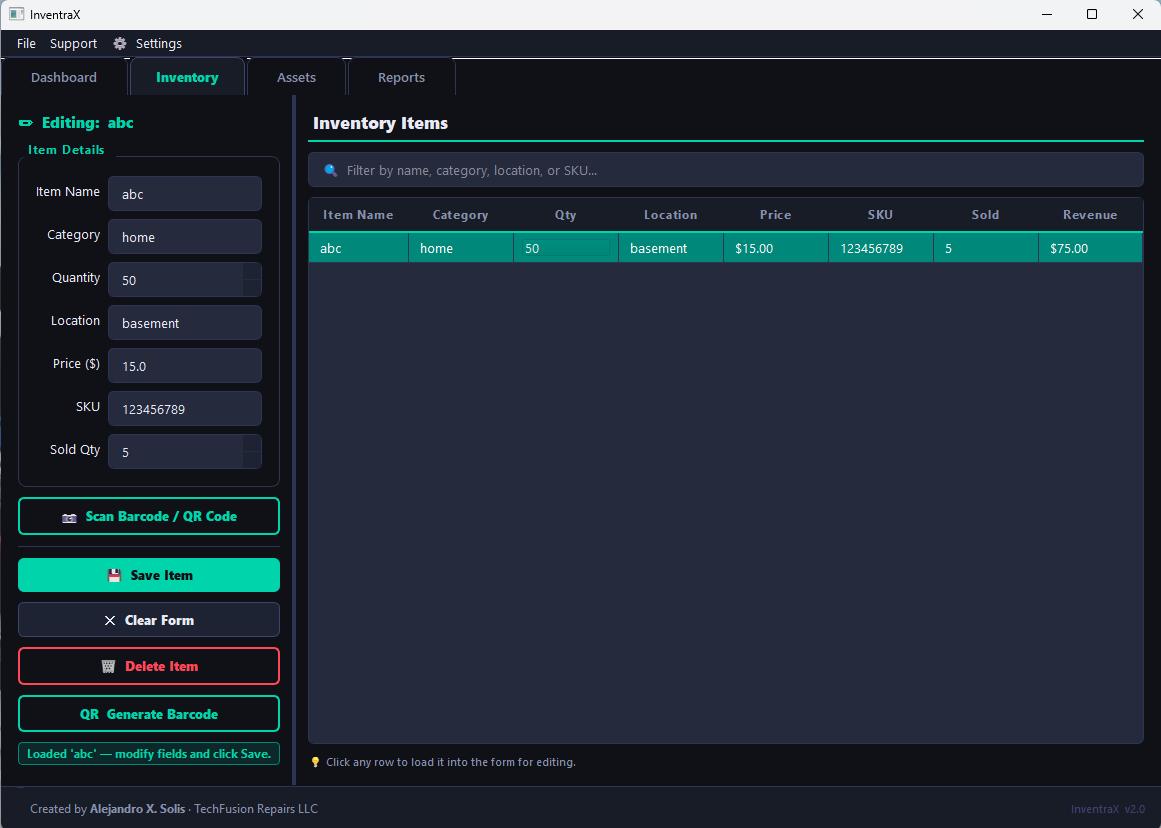
Inventory Tab
- Add, edit, and delete inventory items
- Click any row to load it into the edit form
- Double-click any row to open the full detail editor (all fields including serial number, warranty date, and notes)
- Search / filter in real time
- Sortable columns
- Color-coded rows: red = out of stock, amber = low stock
- Scan a barcode or QR code to look up an item instantly
- Generate and preview QR codes for any item
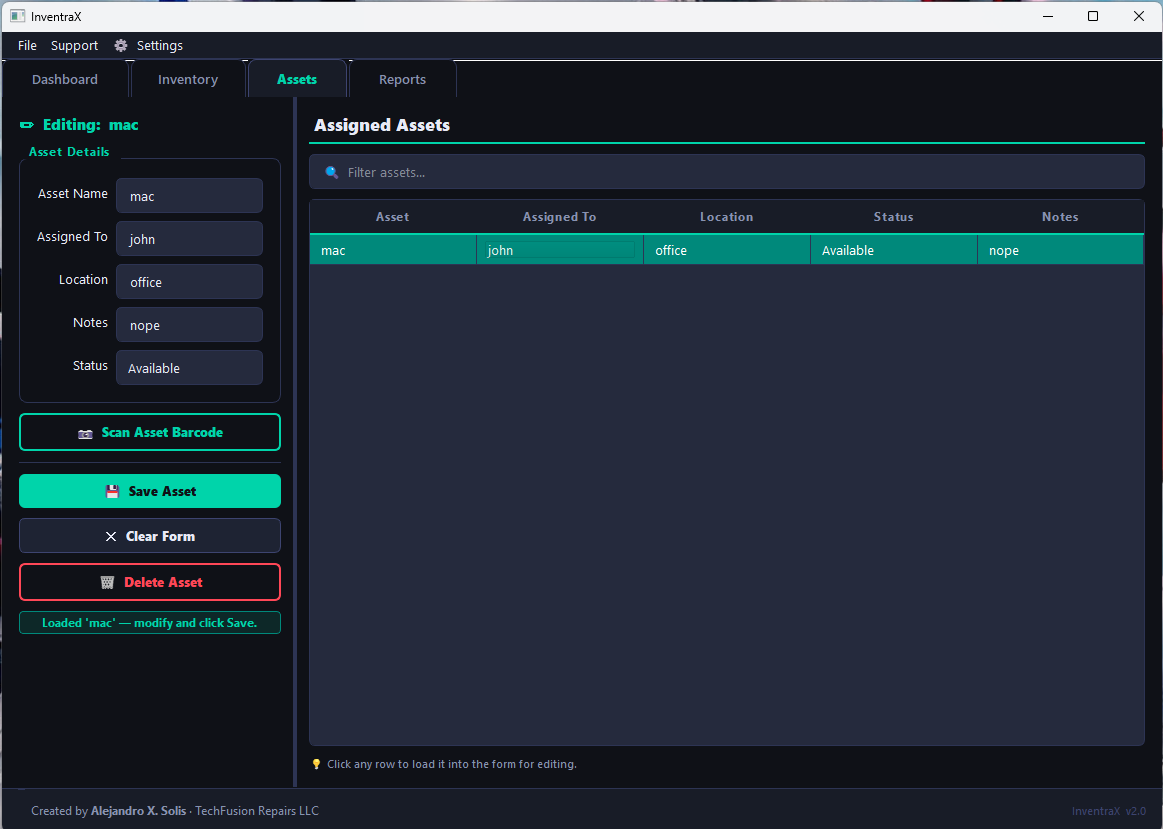
Assets Tab
- Assign assets to people and departments
- Track status: Active, In Repair, Available, Reserved, Retired, Lost, Disposed
- Click any row to load and edit
- Scan asset barcodes to look up records
- Transfer and return workflow (via
asset_manager.py) - Full assignment history and maintenance log
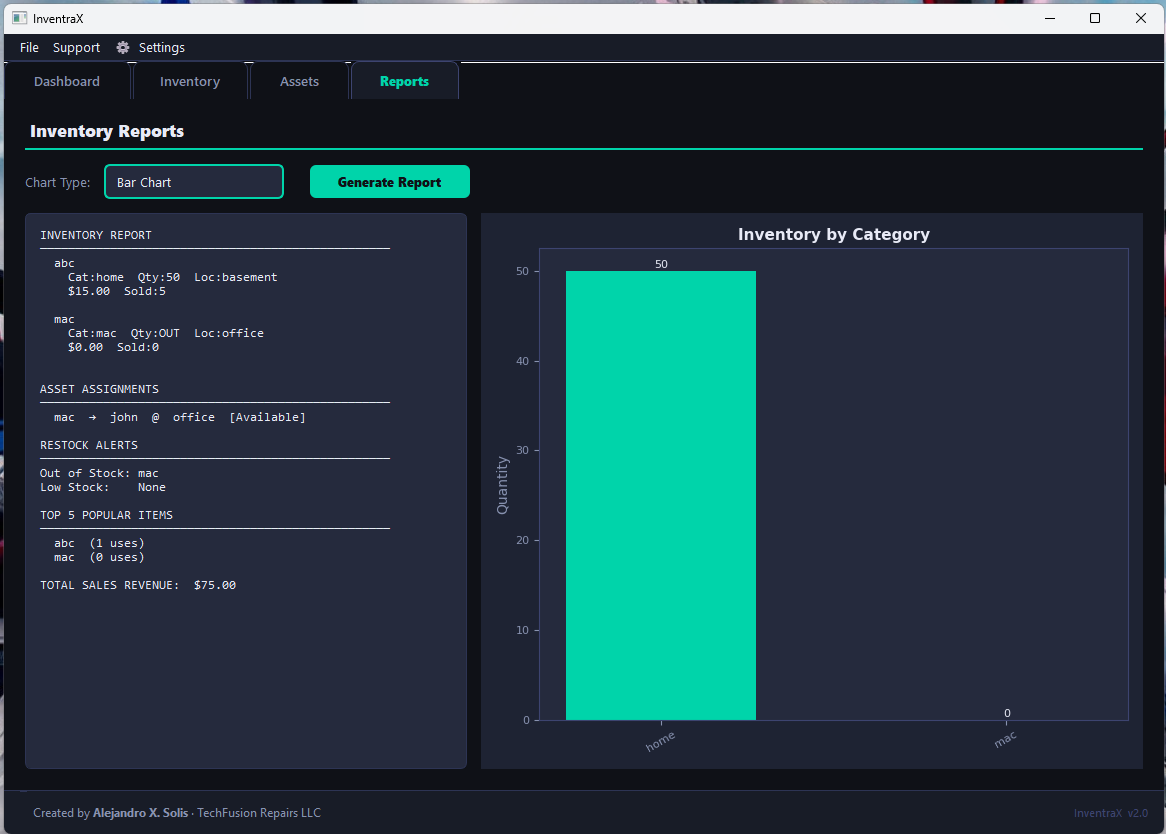
Reports Tab
- Text report with full inventory and asset summary
- Bar, pie, and line charts
- Export to Excel (multi-sheet workbook), CSV, or PDF
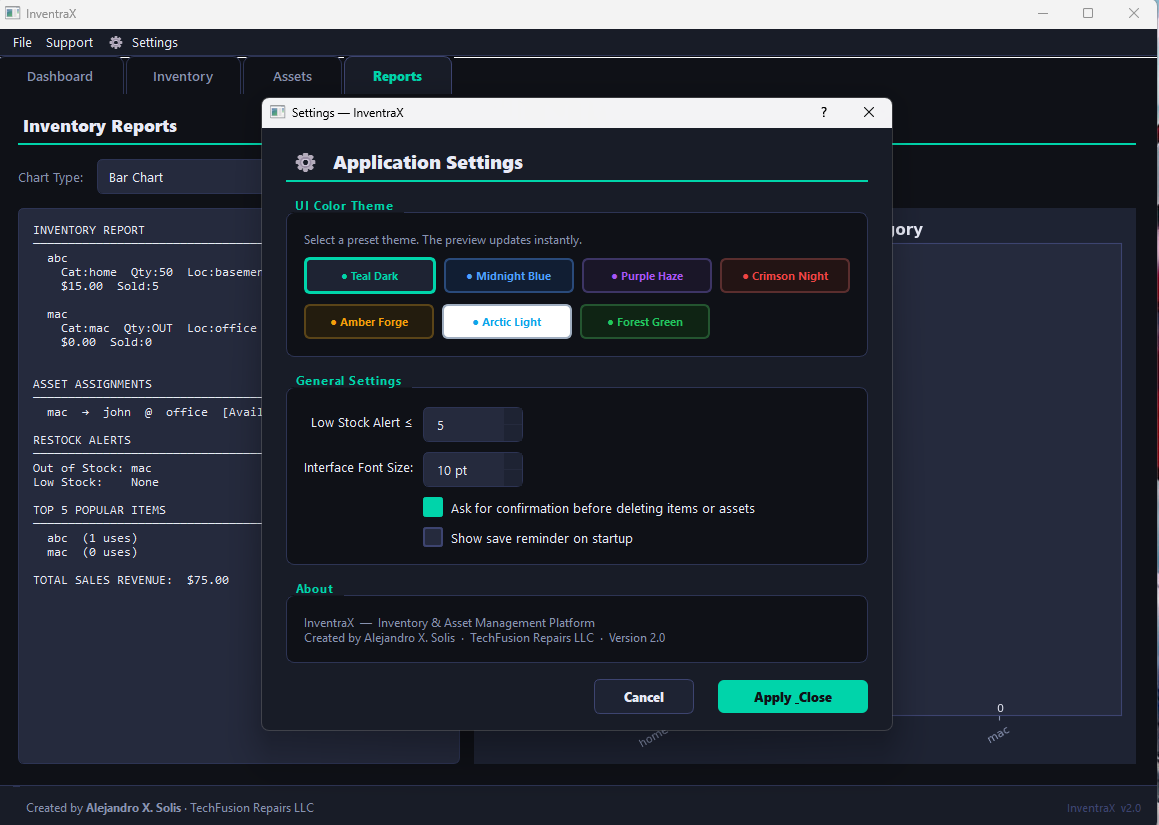
Settings
- 7 built-in color themes with live preview
- Adjustable font size (8–16 pt)
- Configurable low-stock threshold
- Confirm-on-delete toggle
- All settings persist between sessions
Keyboard Shortcuts
| Shortcut | Action |
|---|---|
Ctrl+S
| Save current item / asset (or save all to DB) |
Ctrl+N
| Clear form / start new item or asset |
Ctrl+F
| Focus the search bar on the current tab |
Ctrl+P
| Switch to Reports tab and generate report |
Ctrl+E
| Export inventory to Excel |
Ctrl+D
| Go to Dashboard |
Ctrl+1
| Switch to Dashboard tab |
Ctrl+2
| Switch to Inventory tab |
Ctrl+3
| Switch to Assets tab |
Ctrl+4
| Switch to Reports tab |
Ctrl+,
| Open Settings |
F5
| Refresh all tables and dashboard |
Data Persistence
- All inventory and asset data is saved to
data/inventrax.dbautomatically when the app closes - Data is loaded back into memory automatically on startup
- A timestamped backup of the database is created in
backups/on every clean close - The last 10 backups are kept automatically (oldest are deleted)
- User preferences (theme, font size, etc.) are saved to
config/user_prefs.json
Exporting Data
From the UI
- File → Download Inventory File — exports inventory to Excel
- Reports tab → Generate Report — builds text report + chart
- Double-clicking a chart type and clicking Export PNG saves the chart
From code
from core.reporting import generate_auto_report from ui.main_window import inventory_data, asset_data # Export everything (Excel workbook + CSV + PDF) to the reports/ folder paths = generate_auto_report(inventory_data, asset_data, fmt="all")
Barcode / QR Scanning
USB / Bluetooth Scanner
Plug in any standard HID keyboard-wedge barcode scanner.
Click 📷 Scan Barcode / QR Code in the Inventory or Assets tab — the scanner dialog opens, focus the USB Scanner tab, and pull the trigger. No drivers needed.
Camera Scanner
Requires opencv-python and pyzbar to be installed (see Quick Start).
Click 📷 Scan Barcode / QR Code, switch to the Camera tab, click Start Camera, and point your webcam at the code.
Generating QR Codes
Select an item in the Inventory tab and click QR Generate Barcode.
The QR code is saved to barcodes/<item_name>_barcode.png and a preview is shown.
Backup & Restore
Backups are created automatically in backups/ on every clean close.
To restore manually:
from core.backup import restore_database, list_backups # See what backups exist for b in list_backups(): print(b["filename"], b["size_kb"], "KB", b["created_at"]) # Restore (automatically safety-backs-up the current DB first) restore_database("backups/inventrax_20240615_143022.db")
Logs
All errors and info messages are written to logs/inventrax.log.
The file rotates at 5 MB and keeps the last 3 files.
If the app crashes silently, check this file first.
Dependencies
| Package | Purpose |
|---|---|
| PyQt5 | Desktop UI framework |
| pandas | Data manipulation and Excel I/O |
| openpyxl | Excel file engine |
| matplotlib | Charts and graph export |
| qrcode + Pillow | QR code generation |
| opencv-python | Camera barcode scanning (optional) |
| pyzbar | Barcode decoding (optional) |
| reportlab | PDF report export (optional) |
Support
- Email: TechFusionRepairs@gmail.com
- Website: https://alejandroxsolis93.wixsite.com/techfusionrepairsllc
- GitHub: https://github.com/TechFusionRepairsLLC
- Donate: https://www.paypal.com/donate/?hosted_button_id=CESA5GQALY386
InventraX v2.0.0 — © TechFusion Repairs LLC
Download
Click download now to get access to the following files:
Leave a comment
Log in with itch.io to leave a comment.